 printpipe.io
How to make invoice PDFs from an HTML template
Design the invoice once as an HTML template, then send only the numbers for each customer. Line items, totals, paid stamps and page numbers included.
invoicestemplates
An invoice is the same document every time with different numbers in it. So instead of building HTML in your code for each one, you save the layout once as a template and send only the data: the customer, the line items, the totals. Your code stays free of markup, and anyone can change the design in the dashboard without a deploy.
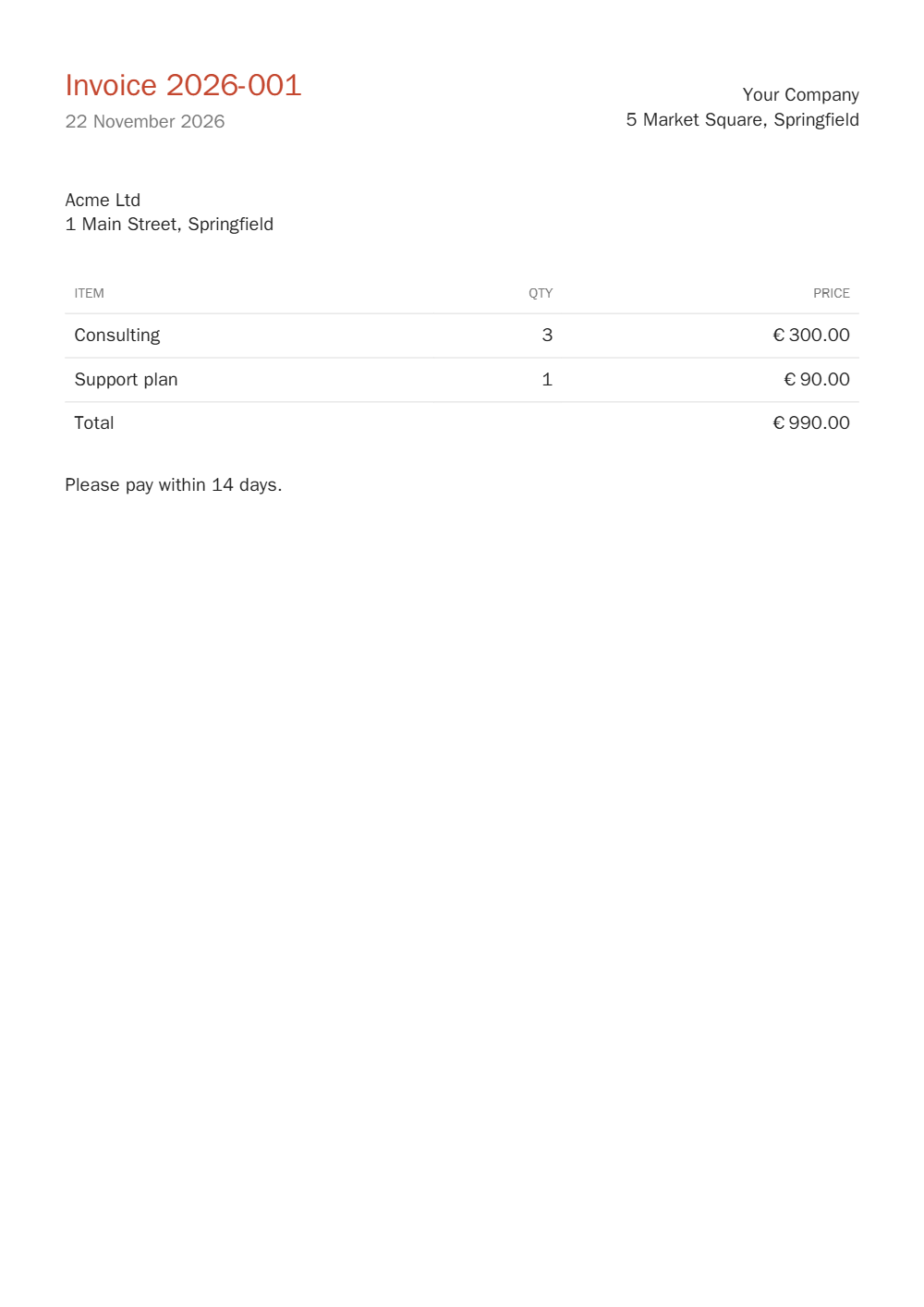
The request
Save the template once (Use this template opens it in your dashboard), then send its id and your data for each document:
curl https://api.printpipe.io/v1/generate \
  -H "X-API-Key: $API_KEY" \
  -H "Content-Type: application/json" \
  -d '{
  "templateId": "YOUR_TEMPLATE_ID",
  "data": {
    "number": "2026-001",
    "date": "22 November 2026",
    "accent": "#c4472f",
    "seller": {
      "name": "Your Company",
      "address": "5 Market Square, Springfield"
    },
    "customer": {
      "name": "Acme Ltd",
      "address": "1 Main Street, Springfield"
    },
    "items": [
      { "name": "Consulting", "qty": 3, "price": "€300.00" },
      { "name": "Support plan", "qty": 1, "price": "€90.00" }
    ],
    "total": "€990.00",
    "paid": false
  }
}' \
--output document.pdfimport { writeFile } from 'node:fs/promises';
const res = await fetch('https://api.printpipe.io/v1/generate', {
method: 'POST',
headers: { 'X-API-Key': process.env.API_KEY, 'Content-Type': 'application/json' },
body: JSON.stringify({
"templateId": "YOUR_TEMPLATE_ID",
"data": {
"number": "2026-001",
"date": "22 November 2026",
"accent": "#c4472f",
"seller": {
"name": "Your Company",
"address": "5 Market Square, Springfield"
},
"customer": {
"name": "Acme Ltd",
"address": "1 Main Street, Springfield"
},
"items": [
{ "name": "Consulting", "qty": 3, "price": "€300.00" },
{ "name": "Support plan", "qty": 1, "price": "€90.00" }
],
"total": "€990.00",
"paid": false
}
}),
});
if (!res.ok) throw new Error((await res.json()).message);
await writeFile('document.pdf', Buffer.from(await res.arrayBuffer()));import os, requests
res = requests.post(
"https://api.printpipe.io/v1/generate",
headers={"X-API-Key": os.environ["API_KEY"]},
json={
"templateId": "YOUR_TEMPLATE_ID",
"data": {
"number": "2026-001",
"date": "22 November 2026",
"accent": "#c4472f",
"seller": {
"name": "Your Company",
"address": "5 Market Square, Springfield"
},
"customer": {
"name": "Acme Ltd",
"address": "1 Main Street, Springfield"
},
"items": [
{ "name": "Consulting", "qty": 3, "price": "€300.00" },
{ "name": "Support plan", "qty": 1, "price": "€90.00" }
],
"total": "€990.00",
"paid": False
}
},
timeout=60,
)
res.raise_for_status()
with open("document.pdf", "wb") as f:
f.write(res.content)How it works
- Use this template above opens the invoice in your dashboard’s template editor. Change the logo, colours and wording, and watch the live preview. Render exact shows the real PDF, with its margins and page breaks.
- Save it. The template gets an id, shown above the editor and in the list.
- For each invoice, send
templateIdanddatato/v1/generate, as in the request above. The answer is the PDF.
Values, lists and conditions
The template is ordinary HTML with a few Mustache tags:
<h1>Invoice {{number}}</h1>
<p><strong>{{customer.name}}</strong><br />{{customer.address}}</p>

<tbody>
  {{#items}}
  <tr>
    <td>{{name}}</td>
    <td class="num">{{qty}}</td>
    <td class="num">{{price}}</td>
  </tr>
  {{/items}}
</tbody>

{{#paid}}
<p class="note paid">Paid, thank you!</p>
{{/paid}} {{^paid}}
<p class="note">Please pay within 14 days.</p>
{{/paid}}
{{number}}prints a value, safely escaped. Dots reach into objects:{{customer.name}}.{{#items}}…{{/items}}repeats for each line item.{{#paid}}…{{/paid}}shows only whenpaidis true,{{^paid}}…{{/paid}}only when it isn’t.
Templates contain no code, so format numbers, prices and dates in your data: send "€990.00" and "22 November 2026", not 990 and a timestamp. That also keeps the currency and date format in one place: your code.
Long invoices
Invoices with many lines run over several pages. Two lines of CSS, already in the template, keep them readable:
thead { display: table-header-group; } /* the column headings repeat on every page */
tr { break-inside: avoid; }            /* a row is never cut in half */
For page numbers, add a footer to the request. Headers and footers are separate little HTML documents printed in the margin, so leave a bottom margin for them, and set their font size inline (they don’t see the page’s CSS). Headers and footers come with the paid plans.
{
  "templateId": "YOUR_TEMPLATE_ID",
  "data": { "number": "2026-001" },
  "marginBottom": 60,
  "footerTemplate": "<div style='font-size:9px; width:100%; text-align:center'>Page <span class='pageNumber'></span> of <span class='totalPages'></span></div>"
}
Your customers’ colours
The template’s colour comes from the data ({{accent}}), so one layout serves several brands. To change more than a colour for one request, send override CSS with it; it’s added after the template’s own styles:
{
  "templateId": "YOUR_TEMPLATE_ID",
  "data": { "number": "2026-001" },
  "css": "h1 { font-family: Georgia, serif; }"
}
Logos and fonts
The PDF is made on our servers, so everything the template uses must be reachable from there:
- Load images and fonts from absolute https URLs, or embed small ones as
data:URIs. A relative path likelogo.pnghas nothing to be relative to. - Web fonts (Google Fonts or your own
@font-face) work; they’re loaded before printing.
Many invoices at once
- Your plan sets how many conversions run in parallel. To send a month’s invoices, run that many workers and queue the rest on your side; extra requests get
429. - With
callBackUrl(Plus plans and up), each request is answered at once and the PDF is posted to your server when it’s ready. See Async & callbacks. - An AI assistant connected to our MCP server can fill a template for a list of customers and combine them into one PDF with
combine_pdfs.